Chrome extension

Show it once.
Context comes along.

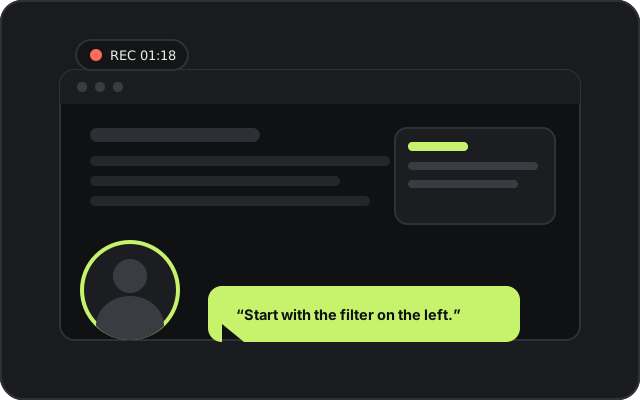
Record a Chrome tab and talk it through. The steps, screenshots and page details come along with the video, and it all stays on your device.

No accountWorks offlineSaved on your device

What it is

A Chrome screen recorder for bug reports.

Show Along records a browser tab with your voice and saves the video together with the steps, clicks and screenshots. If you turn on page details, it adds the console errors and network requests from that tab. QA testers and developers can send one recording instead of a long message, and everything is saved to a folder on your device, with no account needed. New to bug reports? Read our guide to writing a good bug report.

What your developer gets

Everything they’d ask for, already there.

One recording. The video, the steps, the clicks and the exact error, lined up on one timeline.

Review before export 2 to review

Request header · AuthorizationAuthorization: Bearer ••••••••
Masked automatically
Console · contains an emailuser not found: name@example.com
Needs review
Checkout total doesn’t update after removing a coupon Example
  1. 00:04STEPOpened the checkout page
  2. 00:19CLICKApply coupon “SPRING10”
  3. 00:20NETWORKPOST /api/cart/coupon · 200 · 182 ms
  4. 00:41CLICKRemove coupon
  5. 00:42NETWORKDELETE /api/cart/coupon · 500 · 96 ms
  6. 00:42CONSOLETypeError: Cannot read properties of undefined (reading "total")
  7. 00:58SCREENSHOTTotal still shows $81.00
Export report (.zip) Upload to DriveOnline

How it works

What do you want to show?

Show the problem. Skip the long message.

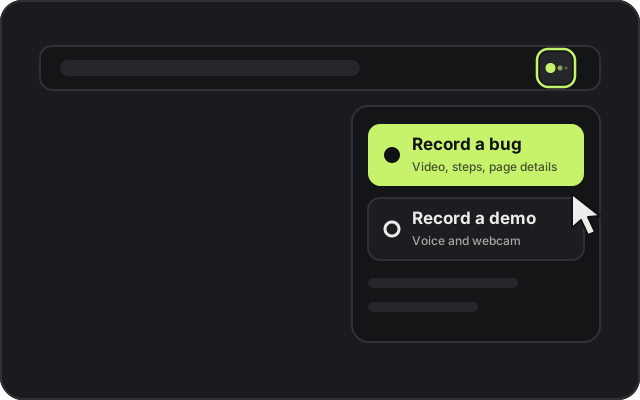
  1. The Show Along toolbar menu with Record a bug highlighted01

    Click the icon

    Choose Record a bug.

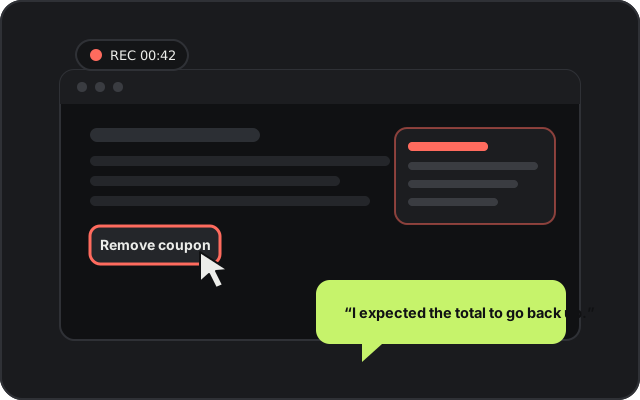
  2. A page being recorded while the person says what they expected02

    Show it once

    Do what you did and say what you expected.

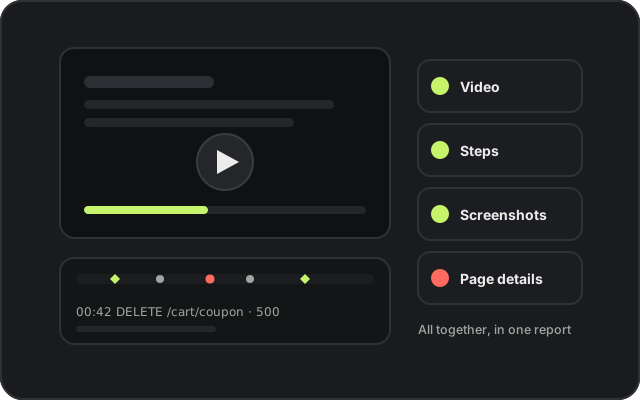
  3. A video with a timeline, steps, screenshots and page details together03

    Context comes along

    Video, steps and page details arrive together.

What it does

Everything a good bug report needs.

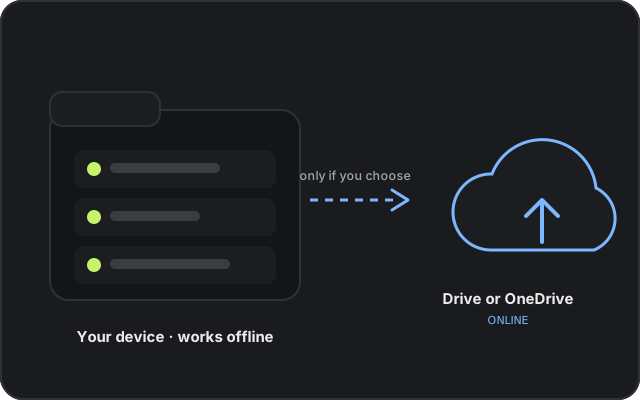
Recordings saved in a folder on your device, with an optional upload to Drive or OneDrive

Private by default

Your recordings stay on your device.

  1. 01
    Saved in a folder you chooseNo internet needed to record, edit or export.
  2. 02
    You decide what goes onlineUpload to Drive or OneDrive only if you connect a folder and pick a recording.
  3. 03
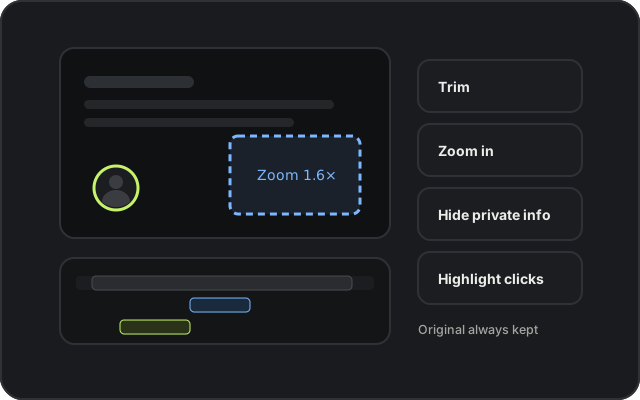
    Hide what’s privateBlur or cover details before you share. Your original is kept as it was.

Quick answers

Good questions.

Got feedback or a question?

Tell us about a problem, a suggestion or anything you’d like to ask. Leave your email and we’ll get back to you.

We use your details only to reply to your message. How the form works.